How to log(monitor) SECS Message by automation.(hide win)
|
This page details how to log(monitor) SECS Message by automation (hide executing window) .
(This function is not supported by Trial version.)
-
How to start logging with executing window hidden.
-
How to stop logging with executing window hidden.
[Note]
Please note the following points , like a logging that uses GUI.
When target COM(Serial port) is the same as logging COM on same PC,
- When target COM was opened, logging will not stop.
- When target COM was opened, logging will not start.
Also when target COM(Serial port) is not the same as logging COM on same PC,
you need not operation.(See "Watch another HOST" function. )
|
-
How to start logging with executing window hidden.
-
Click "Exit" button on Main window.
will end.
-
Click on [Command prompt].
( [Start]-[Programs]-[Accessories]-[Command prompt] )
-
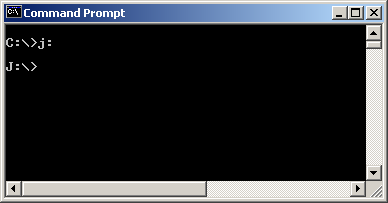
Change current directory of the command prompt to installed directory of
.
if you have release version, you should change to drive of USB memory.
-
Input following image from the Command prompt.
And, please input ENTER at the end if you finished inputting.
In this example,logging is executed for 10 seconds, and it ends by the automatic operation.
If you input "secslog.exe /h /m 0", logging will not end automatic. If you want to stop logging, you must click "Stop" Popup-menu on Task tray.
< Back | Next >
-
How to stop logging with executing window hidden.
-
Click on [Command prompt].
( [Start]-[Programs]-[Accessories]-[Command prompt] )
-
Change current directory of the command prompt to installed directory of
.
if you have release version, you should change to drive of USB memory.
-
Input following image from the Command prompt.
And, please input ENTER at the end if you finished inputting.
In this example,logging will be stopped at once.
< Back |
|
|
|
Last Updated on Tuesday, 31 March 2009 05:16 |